

UiPath UiPath-ADAv1 Test Engine Practice Test Questions, Exam Dumps
100% Free UiPath-ADAv1 Daily Practice Exam With 384 Questions
NEW QUESTION # 207
What status needs to be selected in the Set Transaction Status activity in UiPath Studio so that the respective Queue Item will be retried?
- A. Abandoned
- B. Postponed
- C. Failed
- D. Retried
Answer: C
Explanation:
The Set Transaction Status activity is used to mark the result of a queue item processing1. If the queue item fails with an application exception, it can be retried by setting its status to Failed2. The Retried status is automatically assigned by Orchestrator when a retry is triggered3. The Abandoned status is applied when a queue item remains in progress for too long without being processed4. The Postponed status is used to delay the processing of a queue item until a specific date and time.
NEW QUESTION # 208
Where can you find a list of all the activities that support the Windows compatibility?
- A. In the converted project's settings.
- B. In the Windows-Legacy project configuration.
- C. In the Activities Guide.
- D. In the Official feed documentation.
Answer: C
Explanation:
The Activities Guide is a comprehensive documentation of all the official UiPath activity packages that are available on the Official feed. The Activities Guide provides detailed information about each activity, such as the description, properties, examples, and compatibility. The compatibility section indicates which target frameworks are supported by the activity, such as Windows, Windows-Legacy, or Cross-platform. By browsing the Activities Guide, you can find a list of all the activities that support the Windows compatibility, as well as the minimum version required for each activity package.
References:
Activities Guide - UiPath Documentation Portal
Deprecation of the Windows-Legacy Compatibility - UiPath Studio
NEW QUESTION # 209
What is the functionality of the Include Subfolders filter in the Monitoring pages when a modern folder is selected?
- A. It allows you to choose between background and foreground processes for the displayed data.
- B. It allows you to select whether the contents of the selected folder's subfolders are displayed.
- C. It allows you to allocate licenses per machine for the displayed data.
- D. It enables you to sort the displayed data based on job priorities.
Answer: B
Explanation:
Explanation
The Include Subfolders filter is a toggle button that appears in the Monitoring pages when a modern folder is selected from the Folders drop-down list1. The modern folders are folders that can have subfolders and support role-based access control2. The Include Subfolders filter allows you to choose whether to display the data for the selected folder only, or for the selected folder and all its subfolders3. This filter applies to the Jobs, Queues, Triggers, and Robots pages4. The Include Subfolders filter helps you to monitor and manage the processes and resources across different levels of folders.
https://forum.uipath.com/t/read-all-file-from-sub-folder-and-sub-folder-of-sub-folder/460493
NEW QUESTION # 210
Which of the following best describes the Alerts panel?
- A. A panel that displays alerts as they occur.
- B. A panel that displays the most severe five alerts, accessible from the Alerts bell.
- C. A panel that displays a more comprehensive list of all alerts.
- D. A panel that displays summaries of the alerts you subscribed to, received as error reports every ten minutes, or as daily reports.
Answer: B
Explanation:
The Alerts panel is a feature of the UiPath Orchestrator that shows the most critical alerts related to robots, queue items, triggers, and more1. The alerts are displayed in descending order of severity and time2. The Alerts panel can be accessed by clicking the Alerts bell icon on the top-right corner of the Orchestrator dashboard3. Clicking an alert in the panel redirects the user to the custom filtered page of the associated component4.
NEW QUESTION # 211
In a workflow, a developer has set up two Int32 variables: Var1 and Var2. During Debug mode execution, which panel enables the developer to keep track of the outcome of the expression Var1 > Var2?
- A. Verify Variables Panel
- B. Debug Panel
- C. Local Panel
- D. Watch Panel
Answer: D
Explanation:
The Watch Panel in UiPath Studio allows developers to monitor specific expressions or variable values during Debug Mode.
Why is D Correct?
# Watch Panel:
* Allows tracking of expressions and variable values in real time.
* Helps in evaluating conditions like Var1 > Var2 while debugging.
* Enables custom variable monitoring, making it useful for complex workflows.
References:
# UiPath Official Documentation - Watch Panel# UiPath Debugging Guide
NEW QUESTION # 212
A developer loaded an existing workflow that uses Ul Automation in Google Chrome. The Google Chrome extension has not been installed on the developer's machine How should the developer load the Google Chrome extension from UiPath Studio?
Instructions: Drag the Description found on the left and drop on the correct Step found on the right.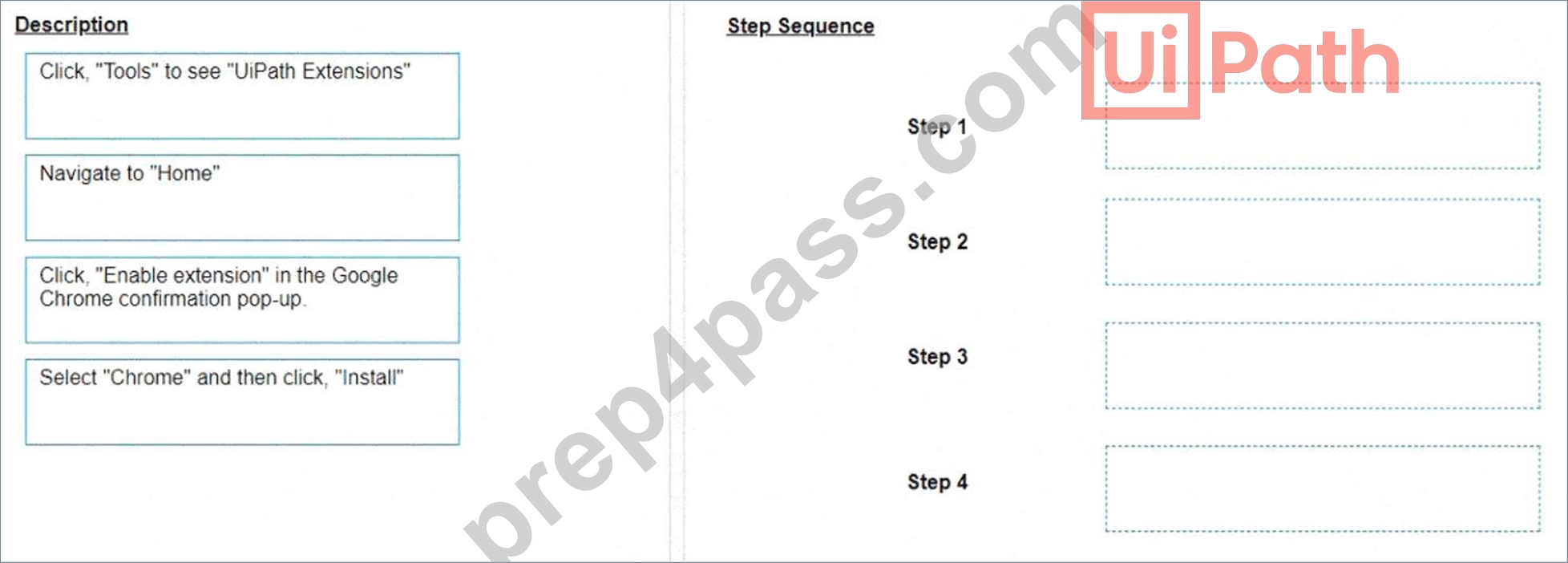
Answer:
Explanation: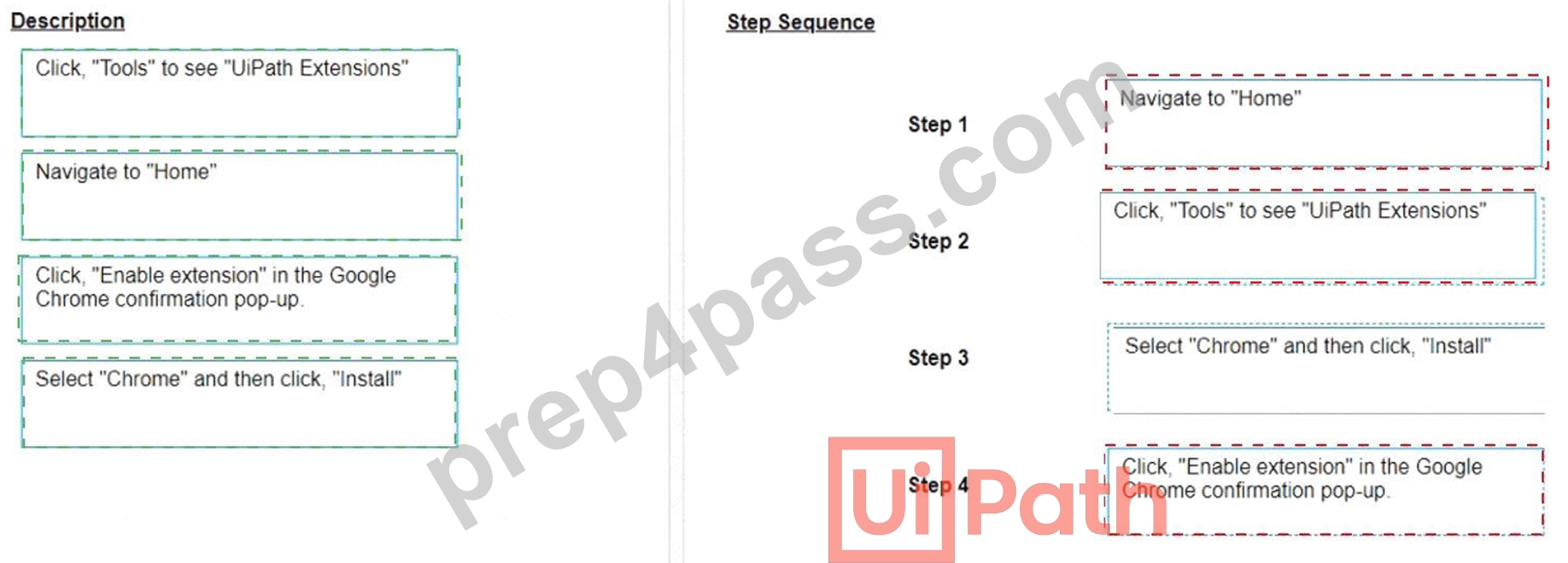
Explanation:
The developer can load the Google Chrome extension from UiPath Studio by following these steps:
* Step 1 = Navigate to Home in UiPath Studio. This is the section where you can create, open, or manage your projects.
* Step 2 = Click Tools to see UiPath Extensions. This is the section where you can install or update various extensions for different applications or browsers.
* Step 3 = Select Chrome and then click Install. This will launch the Chrome browser and redirect you to the Chrome Web Store page for the UiPath extension.
* Step 4 = Click Enable extension in the Google Chrome confirmation pop-up. This will add the UiPath extension to your browser and allow you to use UI automation activities in Chrome.
NEW QUESTION # 213
A developer needs to create a workflow that manipulates items related to invoices inside a web application.
The following selector represents a UI element inside an invoice
represented by an 8-alphanumeric system-generated vendor tax ID.
<html app='chrome.exe' title='ACME System - Invoice - RO123456' />
<webctrl tag='DIV' aaname='RO123456" class='InvoiceNumber' />
Assuming only the Vendor Tax ID value changes in the selector, what represents an example of a good selector that matches only specific invoices with the vendor tax ID defined in a pre-selected existing list?
- A. <html app='chrome.exe' title='ACME System - Invoice - {{VendorTaxID})' />
<webctrl tag='DIV' aaname='{{VendorTaxID})' class='InvoiceNumber' />
Where VendorTaxID is a 8-alphanumeric element. - B. <html app='chrome.exe' title='ACME System - Invoice - RO123456' />
<webctrl tag='DIV' aaname='RO123456' class='InvoiceNumber' />
Where VendorTaxID is a 8-alphanumeric element. - C. <html app='chrome.exe' title='ACME System - Invoice - " />
<webctrl tag='DIV' aaname=' ** class='InvoiceNumber' />
Where VendorTaxID is a 8-alphanumeric element. - D. <html app='chrome.exe' title='ACME System - Invoice - RO123456' />
<webctrl tag='DIV' aaname='({VendorTaxID}}' class='InvoiceNumber' />
Where VendorTaxID is a 8-alphanumeric element.
Answer: A
Explanation:
A good selector for matching specific invoices with the vendor tax ID defined in a pre-selected existing list would use variables or arguments to replace the specific vendor tax ID. The correct syntax for dynamic selectors in UiPath uses double braces {{VendorTaxID}} to represent variables within the selector. Therefore, the correct answer is A, as it correctly uses a variable placeholder for the VendorTaxID.
References:
UiPath Studio Guide: Selectors with Variables
NEW QUESTION # 214
A Credential asset is created by a developer in Orchestrator as seen in the below image: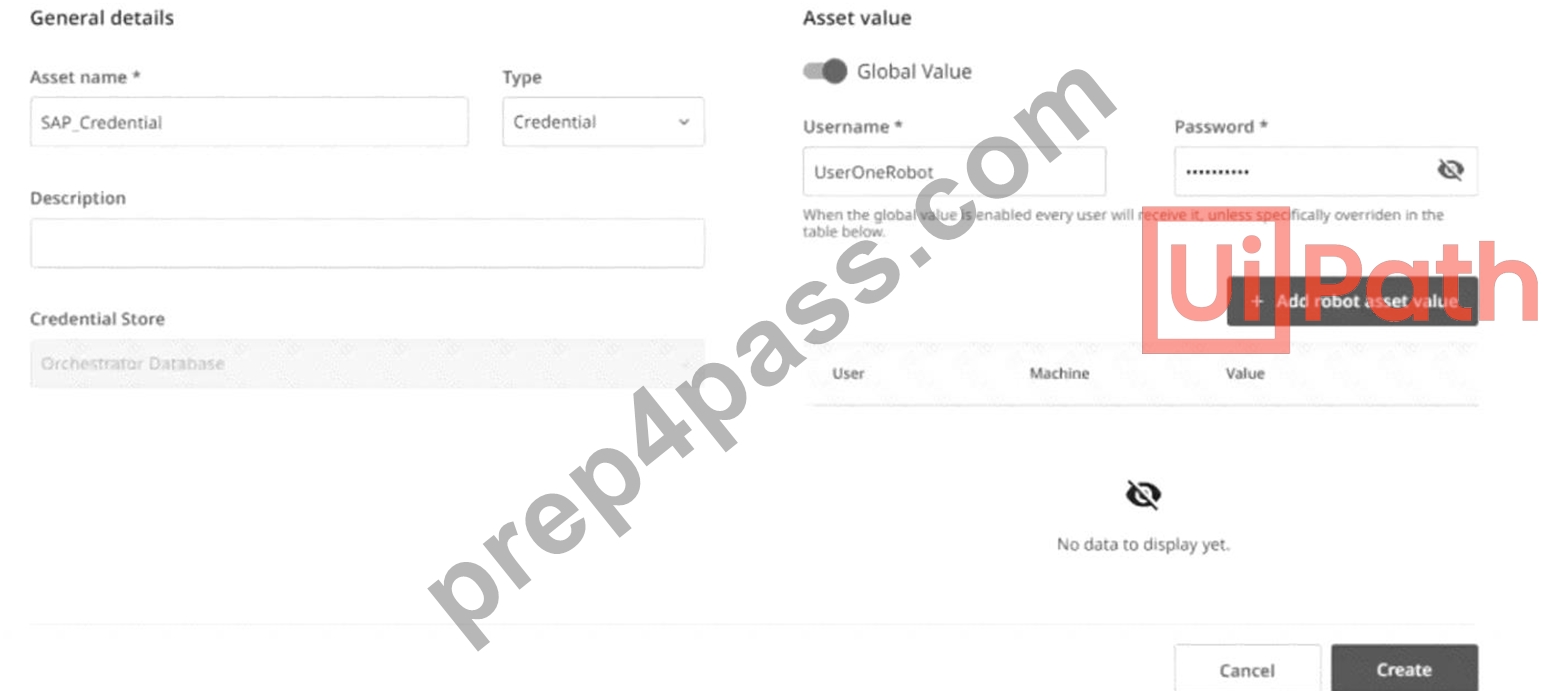
After the asset is created, if you change the Username value, what field must also be changed?
- A. Type
- B. Asset Name
- C. Description
- D. Password
Answer: D
Explanation:
In Orchestrator, when a Credential asset is created and the username value is changed, the password must also be changed to ensure that the credential set remains valid. The username and password are linked as they represent the credential pair used for authentication. Changing one without the other would result in mismatched credentials that cannot be used for logging in to the system that these credentials are associated with. Therefore, the correct answer is D.References:
UiPath Orchestrator Guide: Managing Assets in Orchestrator
NEW QUESTION # 215
You want to automate document processing tasks such as extracting and validating data from multiple documents in an online service. How can you achieve this using UiPath Studio Web?
- A. Use the Document Understanding feature in Studio Web to extract, process, and validate documents.
- B. Rely on the native data export functions of the online service to automate document processing without using Studio Web.
- C. Automate manual data entry by creating a loop in Studio Web to input document details into a spreadsheet.
- D. Build a custom script in Studio Web using programming code to extract and validate data from documents.
Answer: A
Explanation:
UiPath Studio Web supports Document Understanding for processing structured and unstructured documents in cloud-based automation.
* The Document Understanding feature in Studio Web allows:
* Extracting key data fields from documents.
* Validating and classifying document types.
* Using AI models and OCR engines for text extraction.
* This is the most efficient way to handle large-scale document processing without manual intervention.
# Reference: UiPath Studio Web - Document Understanding
NEW QUESTION # 216
Which of the following statements is true?
- A. UiPath Orchestrator consumes the Queue Items uploaded to the UiPath Robot.
- B. UiPath Robots can be deleted if they have pending or active jobs in UiPath Orchestrator.
- C. Attended robots can be connected to UiPath Orchestrator without Windows Credentials.
- D. Unattended robots can be connected to UiPath Orchestrator without the Windows username.
Answer: C
Explanation:
UiPath Attended Robots do not require Windows credentials to be connected to Orchestrator, because:
* They run under the currently logged-in user and do not require a predefined Windows username
/password.
* Attended Robots must be manually triggered by a user and cannot run automatically like Unattended Robots.
* They do not require a remote desktop session like Unattended Robots.
Why Other Options Are Incorrect?
* A (UiPath Robots can be deleted if they have pending or active jobs in UiPath Orchestrator.) #
* Incorrect. Robots cannot be deleted if they have active or pending jobs in Orchestrator.
* Solution: You must stop or remove pending jobs before deleting the robot.
* B (Unattended robots can be connected to UiPath Orchestrator without the Windows username.)
#
* Incorrect. Unattended Robots require Windows credentials to log in and execute tasks without user intervention.
* C (UiPath Orchestrator consumes the Queue Items uploaded to the UiPath Robot.) #
* Incorrect.
* Orchestrator manages and distributes Queue Items to Robots.
* Robots consume the Queue Items, not Orchestrator.
NEW QUESTION # 217
In an RPA Testing project, you created the mock "MySequencemock" for the file "MySequence". You have to update "MySequence" and add a Log Message activity and a Verify Expression activity.
What will happen to "MySequencemock" file when you save the project, assuming that the file is closed?
- A. The changes made in "MySequence" workflow file are not applied to the mock file.
- B. Only the Log Message activity will be added to the mock file.
- C. The changes made in "MySequence" workflow file are applied to the mock file.
- D. Only the Verify Expression activity will be added to the mock file.
Answer: A
Explanation:
A mock file is a copy of a workflow file that is used to simulate the behavior of the original workflow without affecting it1. When you create a mock file, the original workflow file is automatically added to the project dependencies, and the mock file is added to the test folder2. If you update the original workflow file, the changes are not reflected in the mock file, unless you manually update the mock file as well3. Therefore, if you add a Log Message activity and a Verify Expression activity to "MySequence" workflow file and save the project, the "MySequencemock" file will remain unchanged.
NEW QUESTION # 218
Once "Library A" has been imported as a dependency in the current project, how can the UI Object Repository defined in "Library A" be accessed?
- A. The Object Repository will automatically be available in the Process.
- B. The Object Repository cannot be passed between a Process and a Library.
- C. The Object Repository needs to be exported as a UI Library and imported in the Process for it to become available.
- D. The Object Repository is only available in a Library.
Answer: A
Explanation:
Explanation
The UI Object Repository is a feature that allows you to store and reuse UI elements across different automation projects1. A UI Library is a type of project that contains UI elements and workflows that can be used as dependencies in other projects2. When you import a UI Library as a dependency in your current project, the UI Object Repository defined in the UI Library will automatically be available in your current project3. You can access the UI elements from the Object Repository panel in Studio and use them in your activities4. Therefore, the correct answer is C. The other options are incorrect because they do not reflect the actual behavior of the UI Object Repository and the UI Library.
References: Object Repository documentation, Reusing Objects and UI Libraries documentation, Object Repository course, [Object Repository in Studio course].
NEW QUESTION # 219
A developer configured the properties for a Click activity on an element inside a web page as shown in the following exhibit.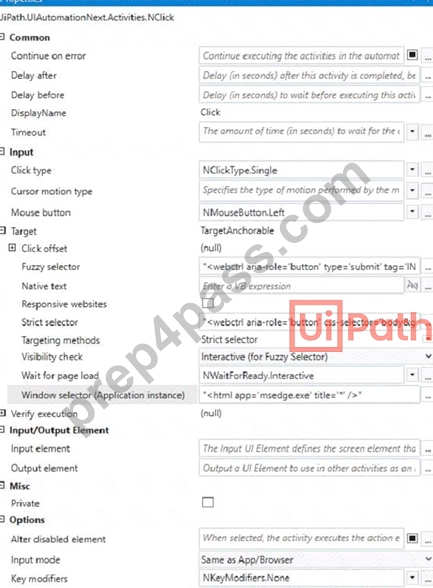
An animation on the web page never completely loads but the element indicated in the Click activity does load within the specified timeout duration. What occurs when this Click activity executes?
- A. Continues to the next activity after 30 seconds without clicking on the element.
- B. Waits 10 seconds before clicking on the element.
- C. Element is clicked once the element is fully loaded.
- D. Timeout error occurs without clicking on the element.
Answer: C
Explanation:
The Click activity is used to simulate a mouse click on a specified UI element, such as a button or a link1. It has several properties that can be configured to customize its behavior, such as the input method, the click type, the timeout, and the wait for ready1.
The input method determines how the click is performed. It can be Default, Simulate, or Window Messages. The Default method uses the hardware driver to simulate the click, and it requires the target element to be visible and in focus. The Simulate and Window Messages methods use the technology of the target application to inject the click, and they can work in the background, even if the target element is hidden or minimized2.
The click type determines which mouse button is used for the click. It can be Single, Double, Down, or Up. The Single and Double types perform a single or double click using the left mouse button. The Down and Up types perform a press or release action using any mouse button1.
The timeout determines how long the activity waits for the target element to appear before throwing an error. It is measured in milliseconds, and it has a default value of 30000 (30 seconds). If the timeout is exceeded, the activity fails with a TimeoutException1.
The wait for ready determines when the activity executes. It can be None, Interactive, or Complete. The None option executes the activity immediately. The Interactive option executes the activity after the target element is loaded. The Complete option executes the activity after the target application is loaded1.
In your case, you have configured the properties for the Click activity as follows:
Input method: Simulate
Click type: Single
Timeout: 30000
Wait for ready: Complete
This means that the Click activity will use the Simulate method to perform a single click on the target element in the background, after waiting for 30 seconds or until the target application is fully loaded, whichever comes first.
Since you have mentioned that an animation on the web page never completely loads but the element indicated in the Click activity does load within the specified timeout duration, what occurs when this Click activity executes is:
Element is clicked once the element is fully loaded.
This is because the Simulate method can work in the background, even if the web page is hidden or minimized, and it does not depend on the animation to complete. The Complete option for wait for ready ensures that the Click activity waits until the target element is loaded before clicking on it. The timeout value of 30000 does not affect this scenario, because it is not exceeded.
Therefore, option A is correct.
References:
Click - UiPath Documentation Portal.
What are different Input methods in UiPath - UiPath Community Forum.
NEW QUESTION # 220
A developer has created a variable of type List of Strings named "UsersList", and initialized it with an empty list: "UsersList = new List(Of String)".
What is printed in the log message after the following Invoke Code is executed?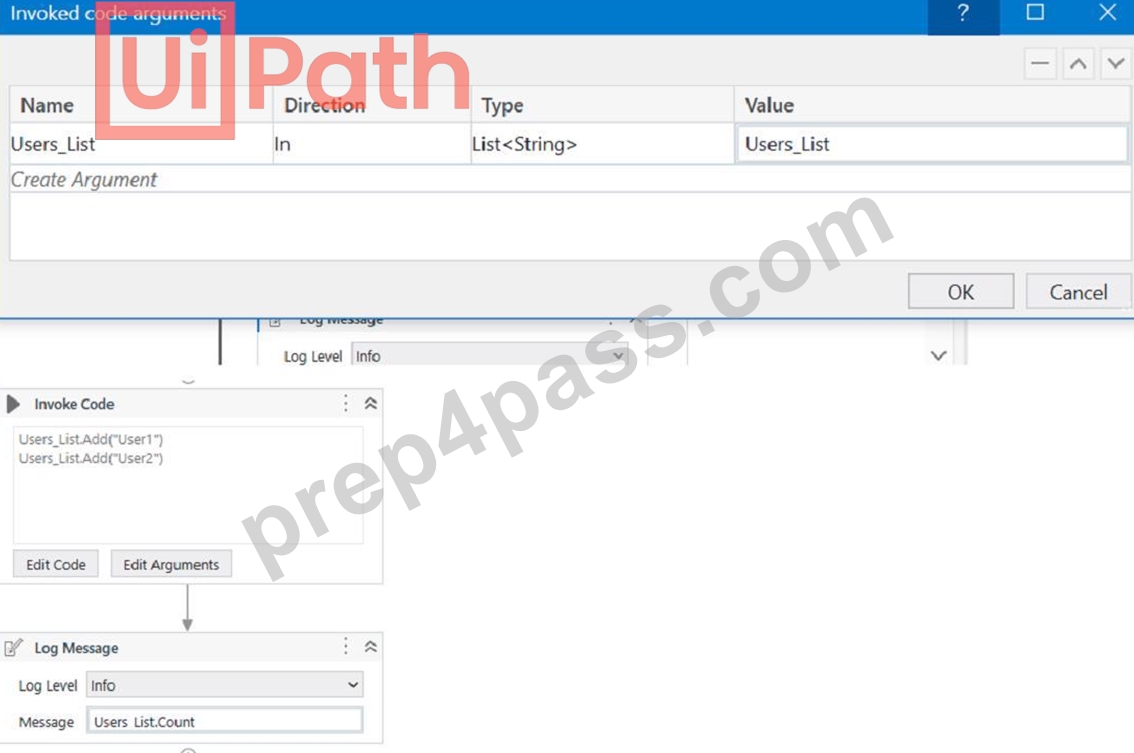
- A. 0
- B. Object reference not set to an instance exception is thrown
- C. System Argument Exception is thrown
- D. 1
Answer: A
Explanation:
Explanation
The code is adding two items to the list, but since the list is initialized as an empty list, the count will be 0.
References:
Data Manipulation with Lists and Dictionaries in Studio course, Lesson 2: Lists, Topic: Creating Lists How to initiate List<String[]>? forum post, Answer by @VishalS
NEW QUESTION # 221
A developer needs to create an array of folder names from the String variable. FilePath =
"C:\\Users\\UiPathRobot\\Documents\\Technologies". Based on best practice, which method will return an array of only the folder names?
- A. SplitfV', FilePath)
- B. Split(FilePath/V)
- C. SplitfV, FilePath. StringSplitOptions RemoveEmptyEntries)
- D. Spht(FilePath,"\": StnngSplitOptions.RemoveEmptyEntries)
Answer: D
Explanation:
Explanation
To create an array of folder names from the String variable FilePath, the method that will return an array of only the folder names is:
Split(FilePath,"").StringSplitOptions.RemoveEmptyEntries
This method uses the String.Split method, which returns an array of strings that are separated by a specified delimiter. The delimiter in this case is the backslash character ("") which is used to separate the folder names in the file path. The StringSplitOptions.RemoveEmptyEntries option is used to remove any empty entries from the resulting array, such as the one before the first backslash or after the last backslash1. For example, if the FilePath variable has the value:
FilePath = "C:\Users\UiPathRobot\Documents\Technologies"
Then the method Split(FilePath,"").StringSplitOptions.RemoveEmptyEntries will return an array of four strings:
{"C", "Users", "UiPathRobot", "Documents", "Technologies"}
These are the folder names in the file path, without any empty entries.
References: String.Split Method from UiPath documentation.
NEW QUESTION # 222
A developer configured the properties for a Click activity on an element inside a web page as shown in the following exhibit.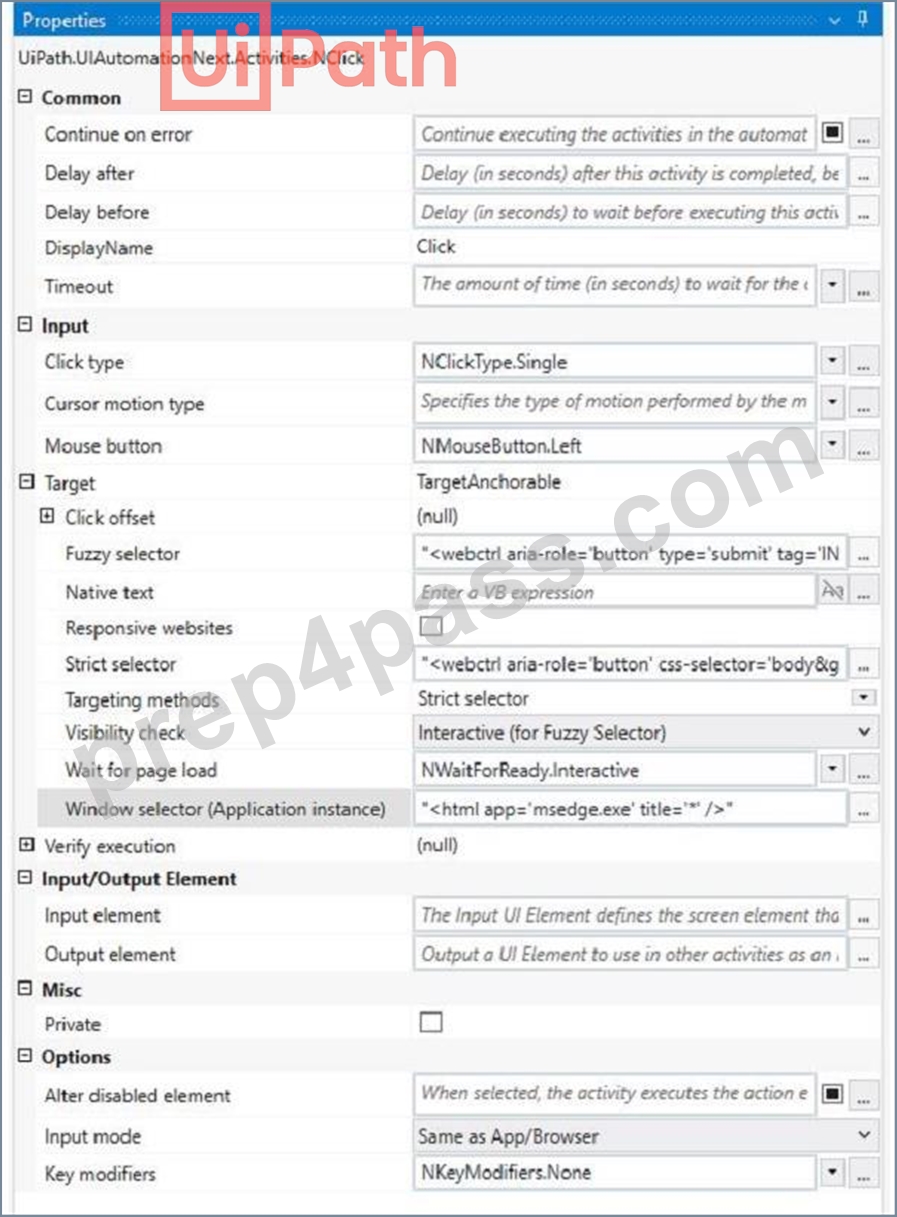
An animation on the web page never completely loads but the element indicated in the Click activity does load within the specified timeout duration. What occurs when this Click activity executes?
- A. Continues to the next activity after 30 seconds without clicking on the element.
- B. Waits 10 seconds before clicking on the element.
- C. Element is clicked once the element is fully loaded.
- D. Timeout error occurs without clicking on the element.
Answer: C
Explanation:
Explanation
The Click activity is used to simulate a mouse click on a specified UI element, such as a button or a link1. It has several properties that can be configured to customize its behavior, such as the input method, the click type, the timeout, and the wait for ready1.
The input method determines how the click is performed. It can be Default, Simulate, or Window Messages. The Default method uses the hardware driver to simulate the click, and it requires the target element to be visible and in focus. The Simulate and Window Messages methods use the technology of the target application to inject the click, and they can work in the background, even if the target element is hidden or minimized2.
The click type determines which mouse button is used for the click. It can be Single, Double, Down, or Up. The Single and Double types perform a single or double click using the left mouse button. The Down and Up types perform a press or release action using any mouse button1.
The timeout determines how long the activity waits for the target element to appear before throwing an error. It is measured in milliseconds, and it has a default value of 30000 (30 seconds). If the timeout is exceeded, the activity fails with a TimeoutException1.
The wait for ready determines when the activity executes. It can be None, Interactive, or Complete. The None option executes the activity immediately. The Interactive option executes the activity after the target element is loaded. The Complete option executes the activity after the target application is loaded1.
In your case, you have configured the properties for the Click activity as follows:
Input method: Simulate
Click type: Single
Timeout: 30000
Wait for ready: Complete
This means that the Click activity will use the Simulate method to perform a single click on the target element in the background, after waiting for 30 seconds or until the target application is fully loaded, whichever comes first.
Since you have mentioned that an animation on the web page never completely loads but the element indicated in the Click activity does load within the specified timeout duration, what occurs when this Click activity executes is:
Element is clicked once the element is fully loaded.
This is because the Simulate method can work in the background, even if the web page is hidden or minimized, and it does not depend on the animation to complete. The Complete option for wait for ready ensures that the Click activity waits until the target element is loaded before clicking on it. The timeout value of 30000 does not affect this scenario, because it is not exceeded.
Therefore, option A is correct.
References:
Click - UiPath Documentation Portal.
What are different Input methods in UiPath - UiPath Community Forum.
NEW QUESTION # 223
To read only the first page of a .pdf file using the Read PDF Text activity, what value should be entered into the Range property?
- A. ""
- B. (0)
- C. 0
- D. "1"
Answer: D
Explanation:
The Read PDF Text activity in UiPath allows users to extract text from a PDF file. The Range property determines which pages should be read.
* Correct Syntax for Reading a Specific Page:
* To read only page 1, you need to enter "1" in the Range property.
* This tells UiPath to extract text only from the first page of the document.
* Why Other Options Are Incorrect:
* B ("") # An empty string means all pages will be read, which is not what the question asks.
* C ((0)) # Incorrect because UiPath follows 1-based indexing, not 0-based.
* D (1) # Incorrect because the Range property expects a string value ("1"), not a numeric input.
References:
# UiPath Official Documentation - Read PDF Text# UiPath PDF Automation Best Practices
NEW QUESTION # 224
A developer has created an automation that utilizes an Asset value from Orchestrator with the Get Asset activity. This value represents the email addresses of the process owners, which are subject to change.
What Asset type is most suitable for this situation?
- A. Text
- B. Integer
- C. Bool
- D. Credential
Answer: A
Explanation:
The Get Asset activity retrieves stored values from Orchestrator Assets. Since email addresses are text- based values, the most appropriate Asset type is Text.
Why is C Correct?
# Text Asset is suitable for:
* Storing strings such as email addresses, URLs, file paths, or API keys.
* Easily updated in Orchestrator without modifying the automation.
* Supports dynamic values that may change over time.
NEW QUESTION # 225
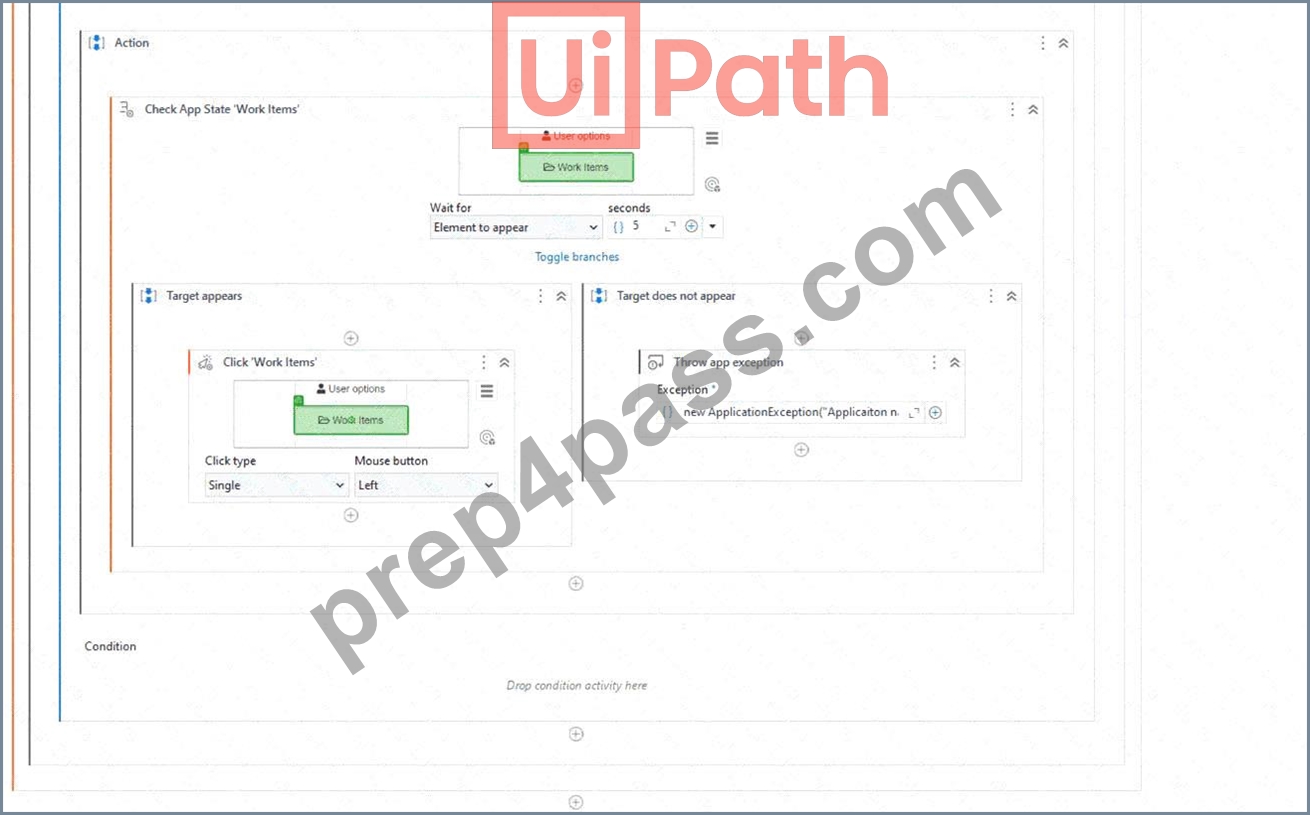
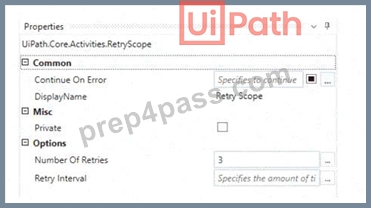
What happens after executing the given sequence if the Work Items button appears on the screen after 8 seconds and the Retry Scope activity has the properties as shown in the picture?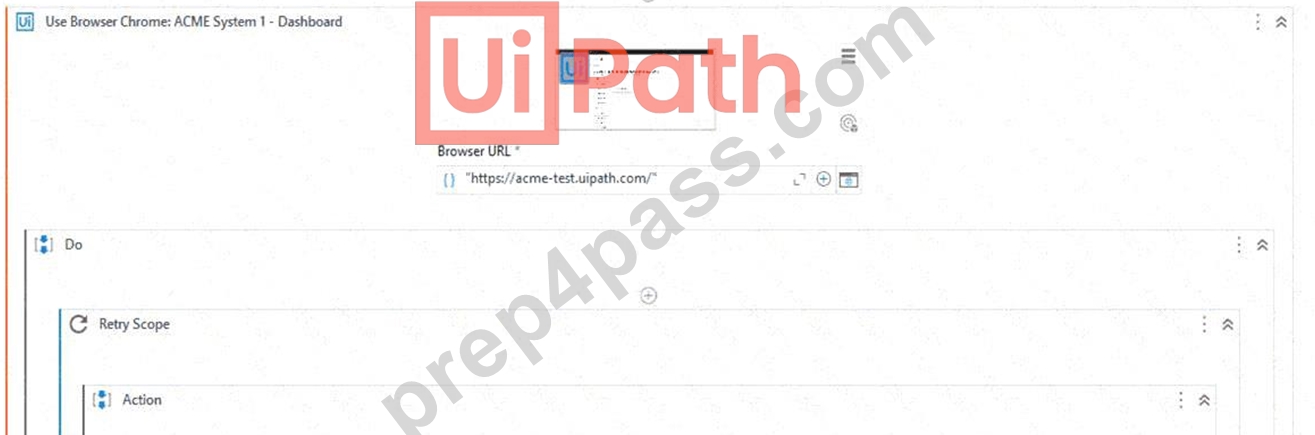
- A. An exception is being thrown.
- B. The Work Items button is being highlighted.
- C. Nothing happens.
- D. The Work Items button is being clicked.
Answer: D
Explanation:
The Retry Scope activity is used to retry the execution of a specific part of the automation in case of an error.
In this case, the properties of the Retry Scope activity are set to retry 3 times with an interval of 8 seconds.
Therefore, if the Work Items button appears on the screen after 8 seconds, the activity will click on the button. References: [Activities - Retry Scope]
NEW QUESTION # 226
What is the purpose of the Interval filter in the Orchestrator's Monitoring page?
- A. It allows you to control the granularity of the displayed data and check the health of your system in either the last day or the last hour.
- B. It allows you to choose between background and foreground processes for the displayed data.
- C. It allows you to allocate licenses per machine for the displayed data.
- D. It enables you to sort the displayed data based on job priorities.
Answer: A
Explanation:
The Interval filter in the Orchestrator's Monitoring page lets you select the time range for the data that is displayed on the dashboard1. You can choose between Last Day and Last Hour options to view the performance and health indicators of your system at different levels of detail2.
NEW QUESTION # 227
What are the differences between the Workbook Write Range and Excel Application Integration Write Range activities in writing a DataTable to an Excel file?
- A. (Excel) Write Datatable to Excel activity will create the file in the WorkbookPath property if it does not exist.
(Workbook) Write Range activity can only be used when Excel is installed. - B. (Excel) Write Datatable to Excel activity will execute correctly even if the file is opened by the user before running.
(Workbook) Write Range activity will create the file in the WorkbookPath property if it does not exist. - C. (Excel) Write Datatable to Excel activity only works in the foreground, visible to the user.
(Workbook) Write Range activity only works in the background. - D. (Excel) Write Datatable to Excel activity only works in the background.
(Workbook) Write Range activity requires that the file is not opened by the user before running.
Answer: B
Explanation:
The difference between "Workbook Write Range" and "Excel Application Integration Write Range" activities is that the "Excel Application Integration Write Range" (also known as "Excel Write Range") activity can execute correctly even if the Excel file is already opened by the user before running. It interacts with Excel as an application, making it visible and allowing for interaction with the Excel interface. On the other hand, the
"Workbook Write Range" activity works in the background, does not require Excel to be installed, and will create the Excel file in the specified path if it does not exist. So, the correct answer is D.
References:
UiPath Activities Guide: Excel Write Range
UiPath Activities Guide: Workbook Write Range
NEW QUESTION # 228
Which of the following statements is true about Global Constants?
- A. Global Constants values can be modified during the automation execution.
- B. Global Constants can be created only from the Data Manager panel.
- C. Global Constants have a Direction property (In/Out).
- D. Global Constants can be created from the Data Manager panel and from the Variables panel.
Answer: D
Explanation:
Global Constants are a type of variables that can store data in a central location that can be accessed by all workflows and activities in a project. Unlike Global Variables, Global Constants have a fixed value that cannot be modified during the automation execution. Global Constants can be created from two places in UiPath Studio: the Data Manager panel and the Variables panel. The Data Manager panel is a new feature in UiPath 2022.10 that allows the developer to manage all the data elements of a project, such as variables, arguments, data types, and data sources. The Variables panel is a classic feature that allows the developer to create and edit variables for a specific workflow. To create a Global Constant from the Data Manager panel, the developer needs to select the Constants tab, click on the New Constant button, and fill in the required fields, such as name, type, value, and description. To create a Global Constant from the Variables panel, the developer needs to select the Global scope, click on the Create Variable button, and fill in the required fields, such as name, type, value, and description. In both cases, the developer needs to make sure that the Is Constant option is checked, which indicates that the variable is a constant and cannot be changed.
References:
Global Variables and Constants - UiPath Community Forum
Data Manager - UiPath Studio
Variables Panel - UiPath Studio
NEW QUESTION # 229
......
Use Valid New UiPath-ADAv1 Test Notes & UiPath-ADAv1 Valid Exam Guide: https://www.prep4pass.com/UiPath-ADAv1_exam-braindumps.html
UiPath-ADAv1 exam torrent UiPath study guide: https://drive.google.com/open?id=1AjTUu6jA9dC65p8eIOL4_WysCJqlqdG5
